

Promote products through a reciprocal exchange with participating Shopify stores.
View on Shopify App Store ↗How Vendoria Connects Your Eggflow Products, Coupons, Giveaways and Reviews
Learn how Instant Traffic, Instant Upsell, Instant Giveaway and Instant Review connect to Vendoria, with practical setup steps for your Shopify store.
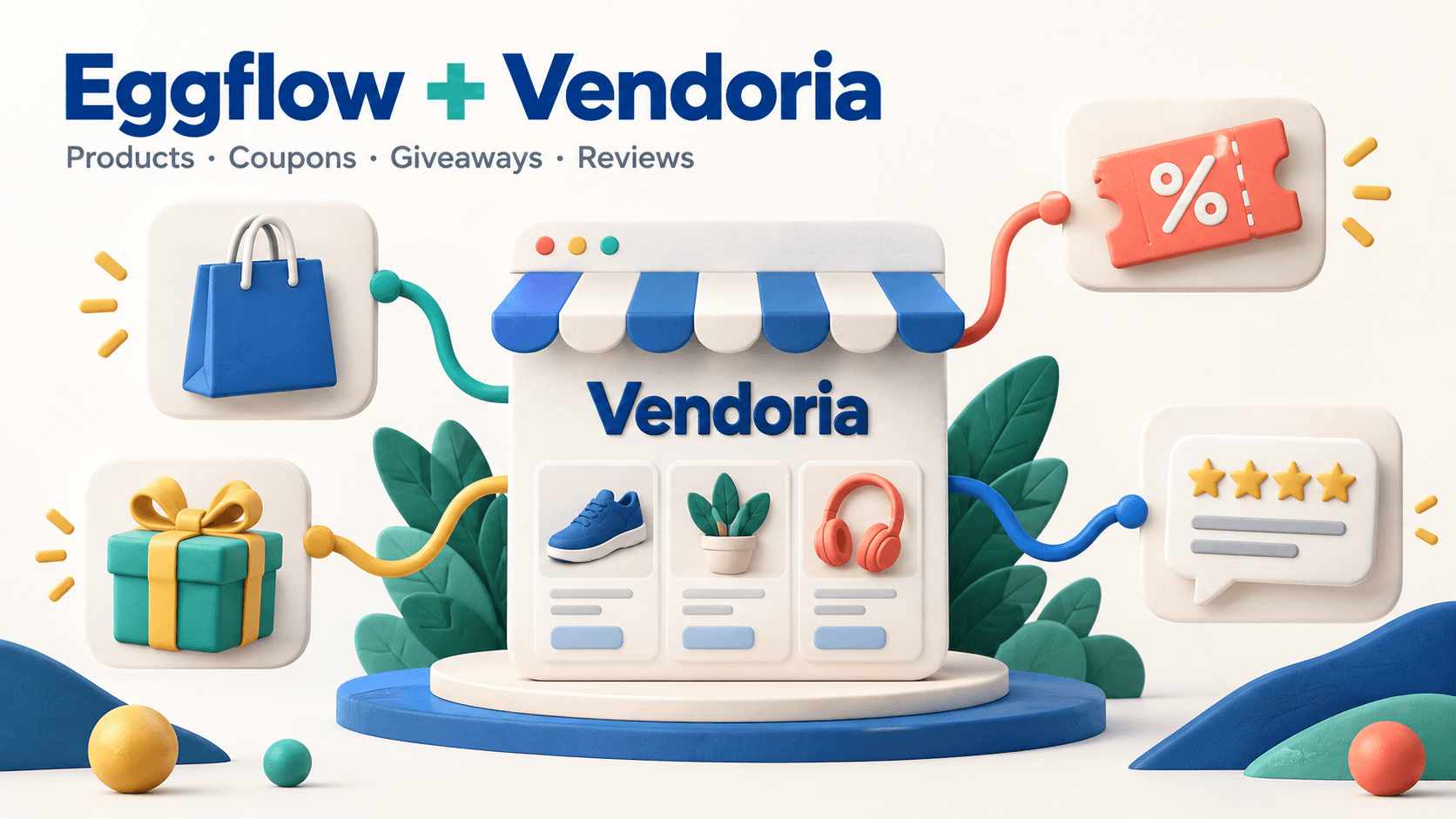
Your products, promotions and customer feedback already live in your Eggflow apps. Vendoria brings eligible content from those apps into a shopper-facing discovery experience, helping people find a product, copy an offer or join a giveaway before continuing to your Shopify store.
This guide explains how Instant Traffic, Instant Upsell, Instant Giveaway and Instant Review connect to Vendoria, and what to check in each app. Use the sections that match the apps installed on your store; each integration has its own content and eligibility requirements.
How the Vendoria shopping journey works
A shopper can browse products and categories, search for an item, explore a store, discover a coupon or view a giveaway on Vendoria. Product links lead to the merchant's Shopify store, where the shopper completes their purchase. Giveaway participation takes place on the campaign page hosted through the merchant's store.
The four integrations serve different purposes: Instant Traffic supplies product discovery, Instant Upsell supplies discount offers, Instant Giveaway supplies campaigns, and Instant Review adds product feedback. Merchants manage the source content in the corresponding apps.
1. Instant Traffic: help shoppers discover your products
Instant Traffic supplies the product catalog used across Vendoria's listings, search results, category pages, product pages and store pages. Eligible products can also appear in featured and deal selections.
Start with products that have clear titles, useful images, accurate prices and a working product page. A discovery card can introduce an item, but the destination page still needs to explain what the shopper is buying.
- In Shopify admin, open Instant Traffic and review the products selected for promotion.
- Open Settings or Partner Ads, then find Network preferences.
- Enable “Promote my products on Vendoria” and click “Save network preferences.”
- Visit Vendoria, search for a promoted product and follow its store link to check the destination.
“Promote my products on Vendoria” and “View store on Vendoria” are separate controls. The first controls product promotion. The second controls the Vendoria store link beside the in-page recommendations on your Shopify storefront; changing that link setting requires a paid plan.
Vendoria has a tracking integration for product impressions and clicks. Measurement depends on the tracking configuration and the shopper's consent. Use the available reports to evaluate visits alongside your store results, rather than treating exposure as a promise of orders.
2. Instant Upsell: make your discount offers discoverable
Vendoria reads eligible active discount rules and linked coupon codes from Instant Upsell. Offers can include vouchers and free shipping. Shoppers can review an offer, copy its code and continue toward the merchant's store.
- Open Instant Upsell and check the discount offer you want shoppers to discover.
- Confirm that the offer and its linked discount code are active and that the offer has not expired.
- Review the discount value, minimum order requirement and expiry date.
- Check the offer on Vendoria and verify its behavior in your Shopify store.
A visible coupon still needs to meet the merchant's checkout conditions. Make those conditions clear so shoppers understand which orders qualify. Vendoria presents the offer; Shopify applies the discount rules when the customer uses it.
3. Instant Giveaway: bring visitors to your campaign
Vendoria can display eligible giveaways with a cover image, a description, prize information and an end date. For an ongoing campaign, the “Join Now” button opens the Giveaway page on the merchant's Shopify store.
- Open Instant Giveaway and publish or activate the campaign you want to share.
- Add a cover image and check the campaign title, prize details, start date and end date.
- Open the public campaign URL and confirm that participants can reach it.
- Check Vendoria's giveaway listing and follow the participation link.
The campaign needs a valid store and public URL. Vendoria checks the destination before showing it, so an unavailable page can prevent a giveaway from appearing even when a campaign record exists.
The giveaway listing may also show recently ended campaigns, marked as ended. Their Vendoria cards do not provide an active participation button.
4. Instant Review: add product feedback to the decision
On Vendoria product detail pages, Instant Review can display the average rating, the number of eligible reviews and the five newest active reviews. The rating and total count are calculated across all qualifying reviews, not just the five shown.
Reviews are matched to the exact Shopify store domain and product ID. Both high and low ratings are included when they meet the publication criteria.
- Keep Instant Review installed on the store whose products appear on Vendoria.
- Check that reviews belong to the correct Shopify products and have an active publication status.
- Open the matching product detail page on Vendoria and review the rating summary and latest feedback.
Only active reviews with ratings from 1 to 5 qualify. A product with no qualifying reviews has no review section. Moderation and uninstall changes are reflected when the review data is read on the next page load. Instant Review is a separate app.
What to check if something is missing
For a product, check its Instant Traffic status, promotion settings and destination URL. For a coupon, check the discount rule, linked code and expiry. For a giveaway, check the campaign dates, cover image and public page. For reviews, check installation status, product matching and whether the reviews are active.
Store eligibility matters across these integrations. Content associated with an inactive or uninstalled app may stop appearing. Some catalog information is cached, so a saved change may not become visible immediately.
If your store uses Smart Pop, its popup setup is separate from the four Vendoria integrations described here.
Take a quick tour of your store on Vendoria
- Choose one promoted product and find it on Vendoria.
- Confirm the product information and open the link back to your Shopify store.
- Check an active coupon or giveaway if you use those apps.
- If you use Instant Review, open the product detail page and inspect its published feedback.
Explore your store on Vendoria
Apps in this guide
Make relevant coupon promotions visible while shoppers browse products.
View on Shopify App Store ↗
Create giveaway, contest and sweepstakes campaigns around a prize relevant to your audience.
View on Shopify App Store ↗Keep exploring
All stories ↗Eggflow Updates
Critical PHP Vulnerabilities: Eggflow Has Deployed the Fixes
Eggflow patched its production PHP runtime on 22 October 2026. Learn what CVE-2026-109618 and CVE-2026-109619 mean and what PHP website owners should check.
Eggflow Updates
New on Vendoria: Image Search, Similar Products, and Better Recommendations
Discover how Vendoria’s image search, Find similar products button, and updated recommendations help shoppers explore products and visit your store.
Eggflow Updates
Instant Buy is now AISellor Support Chat
Instant Buy has a new name and a shared support inbox. Explore live chat, keyword-based FAQ replies and human takeover, while keeping Sticky Add to Cart.