

Present email signup invitations and promotional popups during the storefront visit.
View on Shopify App Store ↗Mobile Shopify Popups: A Timing Test That Protects the Shopping Journey
Test when a mobile popup appears, protect size selection and keyboard use, and compare outcomes with clear eligible-session and exposure counts.
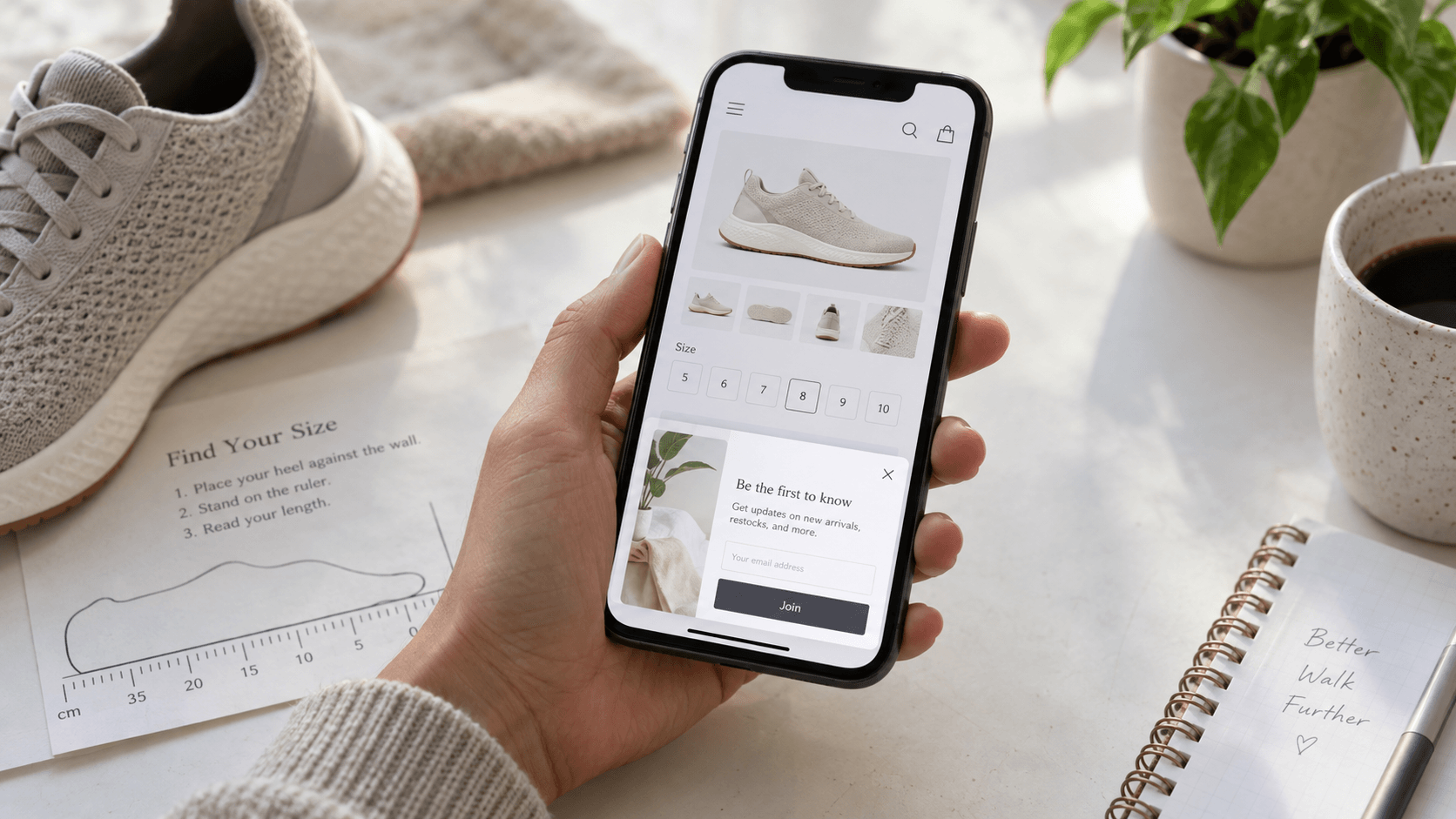
A shopper opens a shoe size chart on their phone. An email invitation appears before they finish reading it, while a recently viewed panel occupies the bottom corner. The shopper is still choosing a size. Calling the interruption an “exit recovery” does not tell you whether it helped that purchase.
A useful mobile popup test asks two questions: what action actually caused the invitation to appear, and could the shopper continue their original task? Start with a recorded journey and a narrow timing comparison. Keep the message and offer unchanged while you evaluate the interruption.
Name the event you can observe
In a September 16, 2026 Shopify Community discussion, a popup vendor explains why mobile exit intent relies on inferred behavior and asks how merchants assess interruptions. The author discloses working for Claspo. Treat the discussion as a useful investigation prompt, not a platform-wide failure rate or proof that one vendor's trigger is best.
Shopify Community: mobile exit intent and interruption concerns
Write the actual rule in your test record: for example, a supported time-on-site condition at a stated threshold on eligible product pages. “Mobile exit popup” is too vague. A popup opening records a display event; it does not establish that someone intended to leave or that an abandoned order was recovered.
Browser visibility is another example of an observable state that needs careful interpretation. MDN documents visibility changes when a page becomes hidden, including when a tab goes into the background or a device's screen turns off. That event describes visibility, not a customer's buying intention.
MDN: what the Page Visibility API reports
App-specific rules matter. Shopify's own Forms documentation marks its leave-page trigger as desktop-only and describes other settings for mobile devices and page eligibility. That describes Shopify Forms; it does not establish how Smart Pop or another app implements mobile behavior. Check the installed tool's supported controls and reproduce the rule on a phone.
Shopify Forms: popup behavior and device settings
Choose one timing question for Smart Popup
Eggflow Smart Popup's current Shopify listing is named Smart Pop – Pop Ups, Email. It describes email collection and promotional popups with time-on-site, scroll and exit-intent triggers, plus content A/B testing. Use it as the primary invitation tool here, after checking the selected plan, device support and available display settings in your installation.
Review Smart Pop's current features and plans
The listing's content A/B feature does not by itself demonstrate a randomized timing test or a no-popup holdout. Verify what the actual test setup can assign and report. If you cannot run a controlled timing comparison, record a usability review first; do not label two unrelated campaign weeks an experiment proving incremental sales.
For the worked example below, imagine a US walking-shoe store comparing a 15-second invitation with a 35-second invitation. Those thresholds are hypothetical test conditions, not recommended defaults or a verified configuration for every Smart Pop installation. Use them only if your tool supports the relevant controls. Keep the same shoe-care email promise, page scope and creative in both conditions.
- Record the exact trigger, threshold, device scope and eligible page types.
- Record which other display conditions are active and how they combine.
- Check when the timer starts, what happens after navigating to another page, and whether it continues while a tab is hidden.
- Check the available repeat-display and dismissal behavior rather than assuming a frequency limit.
- Save the configuration and campaign version used for each observation.
Do not infer a trigger from its campaign name. If multiple conditions can cause a display, your record needs to identify which one actually fired or label that cause unknown. A successful form submission still does not tell you what caused the invitation to open.
Rehearse the shopper's task before comparing rates
Use a real phone, your live theme or an authorized preview, and test accounts where needed. An editor's static mockup cannot show what the keyboard, browser navigation or overlapping widgets will do. This article's feature image is an editorial illustration, not a Smart Pop screenshot or evidence of app behavior.
In the hypothetical shoe journey, the shopper lands on a product, scrolls to sizing, opens the size chart, selects a size and adds the shoes to the cart. Write down the time and visible state at each step. Run the same journey with each invitation condition, including a deliberate pause in the chart. Your question is whether the person can complete the task, not whether the popup is aesthetically pleasing in isolation.
- With the size chart open, check whether another overlay appears and whether the chart can still be read or closed.
- Dismiss the email invitation and confirm the selected size, page position and cart state remain usable.
- Open the email field and check the screen keyboard: can the message, input and close control still be reached?
- Test a blank or malformed submission, then correct it and verify that the form explains the result.
- Use browser back navigation, return to the product, and check whether the invitation unexpectedly reappears.
- Repeat with the other active banners, chat tools and product widgets in their normal states.
For keyboard users, W3C's modal-dialog pattern describes focus moving into the dialog, staying within it during tab navigation, Escape closing it, and focus returning appropriately afterward. It also recommends a visible close control. Use those behaviors as review points for a modal; a non-modal banner has a different interaction model. A visual check alone is not an accessibility certification.
W3C: modal dialog interaction guidance
If the invitation interrupts an essential size decision, correct the display configuration before gathering more signups. Where the installed tool cannot avoid that conflict, consider a supported less intrusive placement or a shopper-opened signup route. Document the limitation instead of assuming every app can coordinate every overlay.
Treat multiple widgets as one screen experience
BeMeApps: Sales Pop Total can be a useful companion for product discovery: its official listing includes recently viewed products and recommendations. In this test, inspect whether its visible widget competes with the email invitation for space or taps. This is a review of the combined storefront experience, not a promise of automatic synchronization between the two apps.
Review BeMeApps: Sales Pop Total
Make a screen inventory: invitation, size chart, consent banner, chat launcher, recently viewed panel and sticky product controls. Give each an owner and purpose. Capture the specific combination that blocks a close button or hides a size selector. Reviewing only the popup app can miss a problem caused by the final layout.
Google Search Central advises avoiding intrusive promotional overlays that obscure the page and describes small banners as an alternative. Keep the product content accessible when visitors arrive. This guidance does not supply a universally safe number of seconds or guarantee a ranking improvement after a timing change.
Google Search Central: avoid intrusive interstitials
Use the denominator that matches the decision
Choose the audience and assignment unit before a controlled test. Where your setup supports it, assign comparable eligible mobile sessions to conditions consistently and run them over the same reporting window. Prevent repeat exposures from being mistaken for new people. If visitors receive both conditions, or assignment cannot be tracked reliably, record the limitation and avoid a causal conclusion.
Keep three separate counts: eligible assigned sessions, sessions actually shown the invitation, and sessions completing the signup. Review purchase outcomes for the assigned groups as well. Changing timing can change who remains on the page long enough to see the popup, so signup per exposure and signup per eligible session answer different questions.
The following figures are hypothetical and independently calculated for this guide. They are not Smart Pop benchmarks, merchant results or Eggflow performance claims:
- 15-second condition: 1,000 eligible assigned sessions, 600 exposed sessions, 36 signup sessions and 22 same-session purchase sessions.
- 35-second condition: 1,000 eligible assigned sessions, 420 exposed sessions, 30 signup sessions and 27 same-session purchase sessions.
- Signup per exposed session: 36 ÷ 600 = 6.0%, compared with 30 ÷ 420 ≈ 7.1%.
- Signup per eligible assigned session: 36 ÷ 1,000 = 3.6%, compared with 30 ÷ 1,000 = 3.0%.
- Same-session purchase per eligible assigned session: 22 ÷ 1,000 = 2.2%, compared with 27 ÷ 1,000 = 2.7%.
The later invitation has a higher signup rate among exposed sessions but fewer signup sessions in the assigned group. Its purchase rate is higher in this illustration, but the difference of five purchase sessions is not enough information to declare a reliable winner. You still need to assess uncertainty, assignment quality and repeat visits. Purchases in the assigned group are not automatically purchases made by subscribers.
Record immediate dismissals and task failures alongside these rates. A close action is an observation, not proof of annoyance or departure. A reproducible blocked size selector, however, is a concrete usability failure to fix. Keep measurement scope consistent, including device, dates, eligible pages and purchase window.
Choose a release decision you can explain
Approve a condition only after the shopping journey works and the data can be interpreted. If the popup keeps covering the size chart, pause that configuration and resolve the conflict. If both journeys work but the results are uncertain, keep the simpler acceptable setup or continue a properly designed test; do not manufacture a “recovered exits” metric.
- The recorded trigger can be reproduced on the intended device.
- Dismissal, keyboard and navigation leave the original shopping task usable.
- Other widgets do not hide essential controls or stack conflicting invitations.
- Assignment, eligible sessions, exposures and outcomes have clear definitions.
- The email contact reaches the intended tool and the promised message is verified.
- The decision records limitations and does not claim prevented exits or guaranteed sales.
For the invitation's basic setup and subscriber promise, use our Smart Popup introduction. For a seasonal early-access offer and its follow-up journey, use the BFCM list guide. Keep this review focused on mobile interruption and timing rather than rebuilding those campaigns.
Eggflow: Smart Popup introduction
Eggflow: BFCM early-access email list
Official documentation, current app listings and Community discussions checked October 11, 2026. The shoe store, thresholds and numerical comparison are illustrative. Verify the controls and behavior available in your installed apps before applying the proposed test.
Apps in this guide

Display recently viewed products, social proof, coupons, and product recommendations.
View on Shopify App Store ↗Keep exploring
All stories ↗
Grow Your Business
Create a BFCM Landing Page That Makes the Offer Easy to Understand
Build a Shopify BFCM landing page with clear eligibility, code instructions, deadlines, and a shopping route that matches the offer.
Grow Your Business
Shopify Discount Stacking for BFCM: A Practical Test Matrix
Test Shopify BFCM discount combinations with six reproducible cases, an illustrative lamp basket and separate checks for product, order and shipping savings.
Grow Your Business
How to Choose BFCM Products Using Inventory and Margin
Build a BFCM product shortlist using sellable stock, campaign allocations and realistic order costs, with an illustrative tote-and-pouch comparison.